


We live in the age of pixels. As designers & developers of the web, pixels can be both our friends and our enemies. We want everything to look nice and sharp on all devices, but we need to keep file sizes down for performance.
There is pretty much only one way to go with icons, logos and illustrations on the web — SVG. Scalable Vector Graphics can look crisp at all screen resolutions, can have super small file sizes, and can be easily edited and modified.
Citing from the official spec at W3.org, SVG is described as:
SVG is a language based on XML for describing two-dimensional vector and mixed vector/raster graphics. SVG content is stylable, scalable to different display resolutions, and can be viewed stand-alone, mixed with HTML content, or embedded using XML namespaces within other XML languages. SVG also supports dynamic changes; script can be used to create interactive documents, and animations can be performed using declarative animation features or by using script.
It has actually been around since 1999 and as of 16 August 2011, it became a W3C Recommendation.
SVG Advantages:
- Scalability: Vector graphics are resolution independent in nature, as the graphic is expressed with a mathematical equation which makes it scalable at any zoom level while maintaining quality.
- Styling and Scripting: Using CSS and Javascript you get more capabilities like style properties such as stroke color and width, fill color, opacity and many other in your shapes
- Can be animated and Edited: You can animate SVG using CSS, JavaScript or SMIL, and each of them gives you a different level of control that you can take advantage of to create all kinds of animations on SVG elements. The SVG object can also be edited with any text code editor or a graphic software like Inkscape (which is free) or Adobe Illustrator.
- Smaller File Size : SVG has a smaller file size compared to Bitmap, that has a similar graphic presentation because their dimensions are defined by mathematical calculations and not by millions of pixels. They carry a lot of information in a relatively small file size format. On the other hand, raster file sizes are defined by pixels, fixed widths and heights, which makes them much heavier while containing less information.
How to draw Basic Shapes with SVG
- Line
To draw a line in SVG we can use the <line> element. This element is used to draw a single straight line, so it will only consist of two points, start and end.
<svg><line x1="0" y1="0" x2="200" y2="200" stroke-width="1" stroke="rgb(0,0,0)"/></svg>

Line via https://hongkiat.github.io/scalable-vector-graphic/

- Polyline
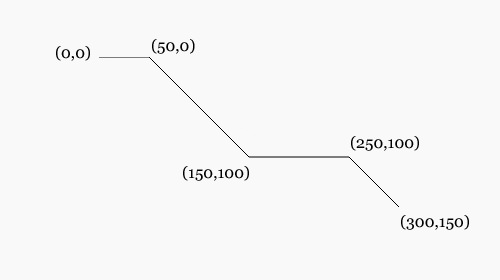
It’s almost similar to the <line>, but with the <polyline> element we can draw multiple lines instead of just one. Here is an example:
<svg><polyline points="0,0 50,0 150,100 250,100 300,150" fill="rgb(249,249,249)" stroke-width="1" stroke="rgb(0,0,0)"/></svg>

Polyline via https://assets.hongkiat.com/uploads/scalable-vector-graphic/svg-polyline.jpg
- Circle
We can also draw a circle with the element. In the following example, we will create a circle with 100 radius which is defined with r attribute:
<svg><circle cx="102" cy="102" r="100" fill="rgb(234,234,234)" stroke-width="1" stroke="rgb(0,0,0)"/></svg>

Circle via Circle via https://hongkiat.github.io/scalable-vector-graphic/
- Ellipse
We can draw an ellipse with . It works quite similar to the circle, but this time we can control specifically the x line radius and y line radius with rxand ry attribute;
Here is the Link to My First Hand Coded SVG:
Simplified Code:
Circle :
     Radius : 23
     Center Postion 25,25
Polyline:
     pairs of x and y coordinates ="15,60 40,80 85,20"
Actual Code:
<button id="submit">
   <svg class="icon" width="30" height="30" viewBox="0 0 100 100">
       <polyline class="check" fill="none" stroke="#19cc95" stroke-width="10" stroke- miterlimit="20" points="15,60 40,80 85,20" />
   </svg>
<span class="text">Ok, Sure</span>
 <span class="spinner">
     <svg width="50" height="50">
        <circle r="23" cx="25" cy="25" />
     </svg>
 </span>
</button>
Resources
There’s a lot more you can do with SVG so don’t stop here, keep digging and discovering more of the awesome things that can be achieved! If you’re interested in learning more, here are some resources I’ve found very useful: